> ## Documentation Index
> Fetch the complete documentation index at: https://docs.sharethat.co/llms.txt
> Use this file to discover all available pages before exploring further.
# Cycles
> Create customizable campaigns to fit your marketing objectives.
Cycles are customizable marketing campaigns. Define requirements that submissions must meet to qualify for a payout.
## How to Create a Cycle
Go to [https://app.sharethat.co/creators/cycles](https://app.sharethat.co/creators/cycles) and click **"Add Cycle"**.
Customize each setting to fit your needs.
## Cycle Settings
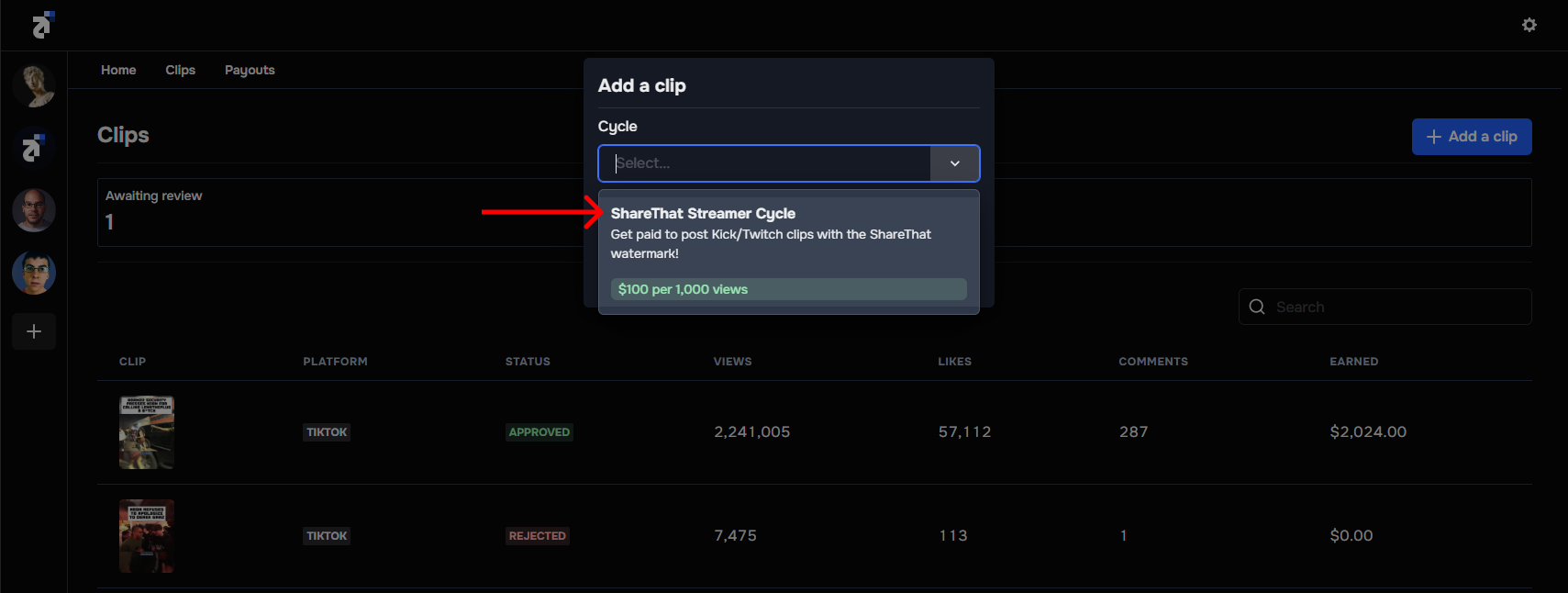
Give each cycle a name. This name shows to clip creators when they submit posts.
 Add a description to include requirements about a cycle.
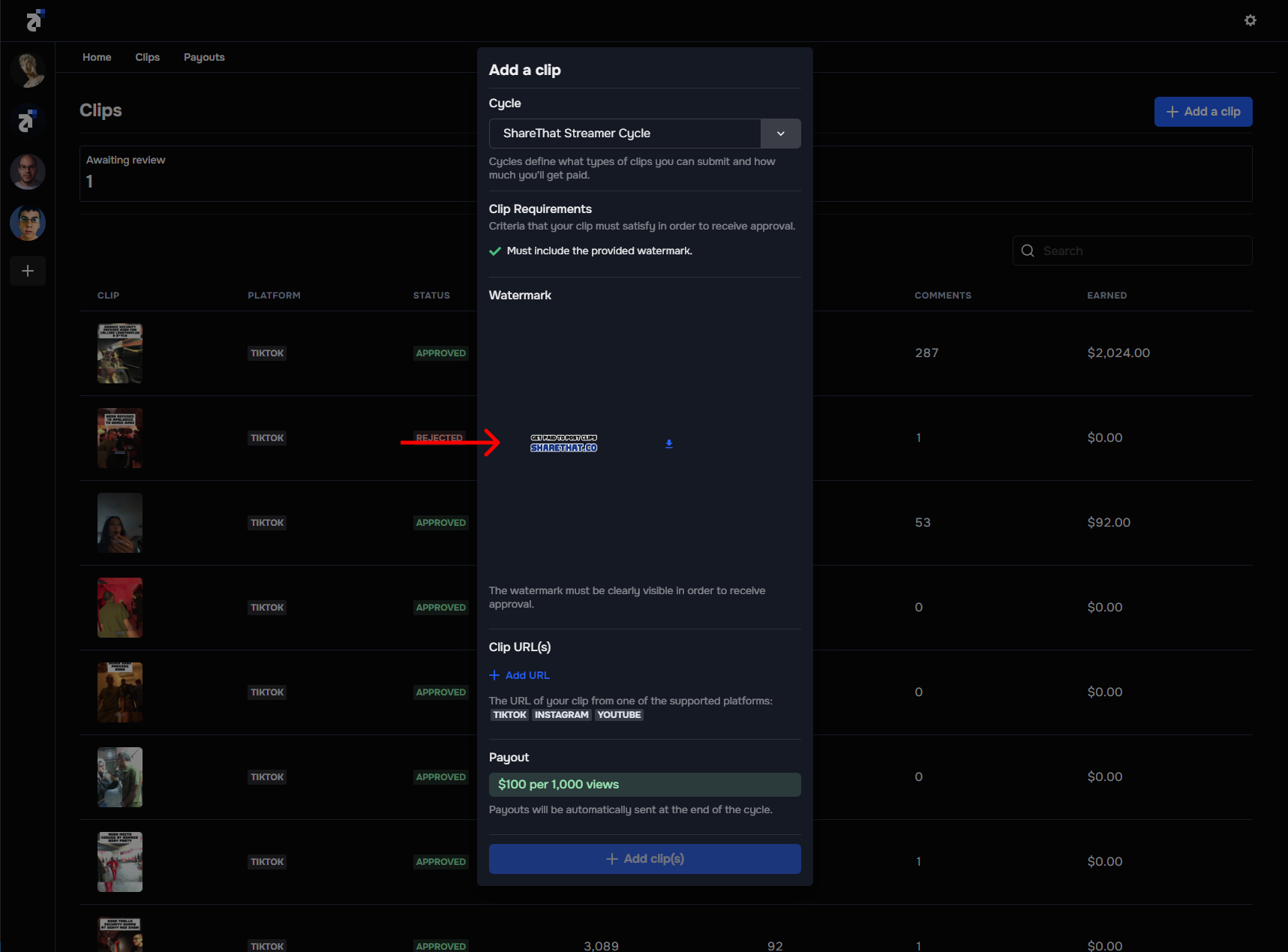
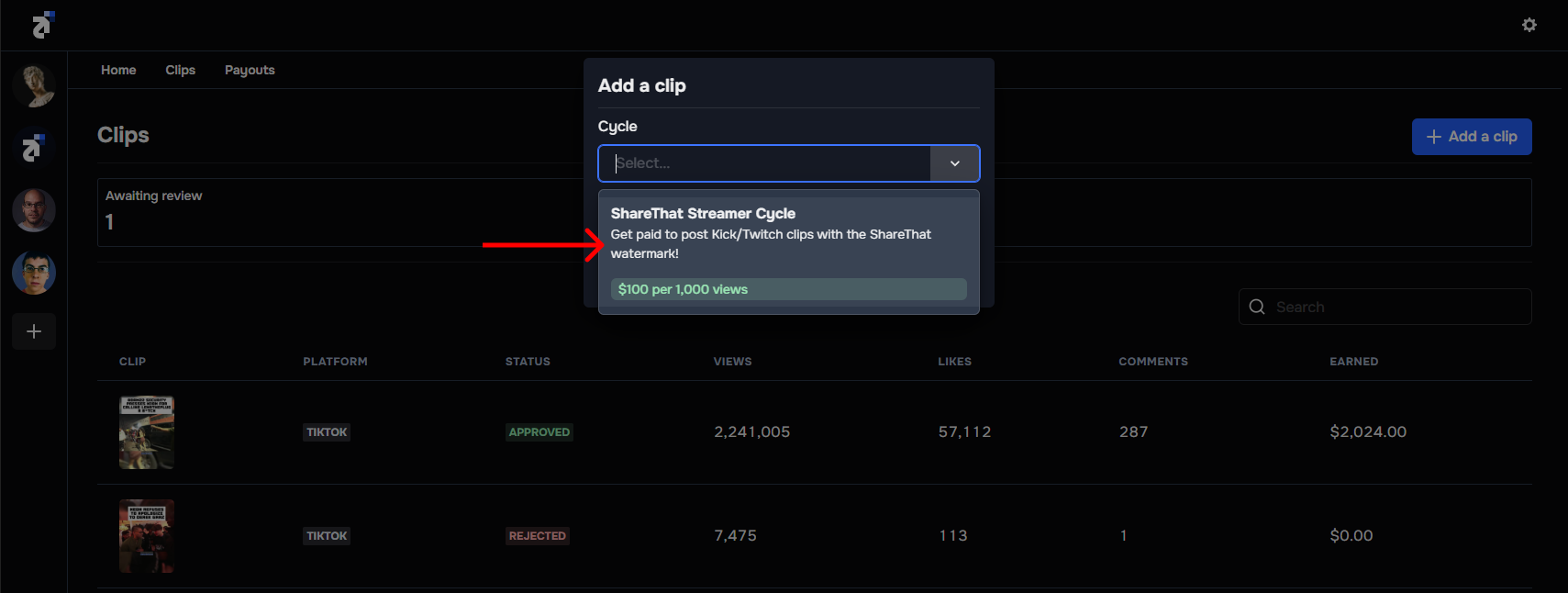 Watermarks are great for promoting logos or small visual ads.
Adding a watermark to a cycle lets clip creators know they must include it with their submissions. It also allows clip creators to download a specific watermark.
Watermarks are great for promoting logos or small visual ads.
Adding a watermark to a cycle lets clip creators know they must include it with their submissions. It also allows clip creators to download a specific watermark.
 Require specific hashtags. When a submission is added, we automatically verify that it includes hashtags.
**Format:** `#sharethat`, `#viral`, `#fyp`
Require specific mentions. When a submission is added, we automatically verify that it includes mentions.
**Format:** `@sharethat`
This feature lets you pick and choose which platforms clip creators can submit for. It's perfect for when you want to pay different amounts for different platforms. You can create separate cycles for each platform. For example, you want to pay `$30 per 100k views` on TikTok and `$10 per 100k views` on YouTube.
We currently support the following platforms:
* TikTok
* Instagram
* YouTube
The mode setting lets you decide how you want to pay for submissions. We offer two different modes:
* **Pay per view:** Pay clip creators based on the number of views generated during a cycle. E.g. Pay \$30 for every 100k views generated on TikTok. Pay-per-view is the best mode for attracting top-tier clip creators.
* **Pot:** Set a fixed budget that will be distributed dynamically to clip creators relative to the number of views they generate during a cycle.
The frequency setting offers two modes:
* **Recurring:** When you create a recurring cycle, the cycle will automatically end and restart at the end of each billing period. This mode is ideal for saving time when on a consistent schedule.
* **One-time:** When you create a one-time cycle, the cycle will end on the specified date and will not automatically restart. This can be a great option for irregular billing periods and one-off promotions.
The payout setting lets you decide how much you want to pay for submissions. Here are some examples:
* **Pay-per-view example:** If you want to pay `$30 per 100,000`. You would put `30` in the **Payout** field.
* **Pot example:** If you have a budget of `$10,000`, you would put `10000` in the **Payout** field.
Define view requirements for payouts. For example, if you pay `$30 per 100k views`, you would pay `$300` for a submission that reaches 1,120,018 views (10 intervals x \$30).
The billing period setting lets you choose how long each recurring cycle should be.
This setting can be used when you want to set a budget on pay-per-view cycles. When approved submissions for a specific cycle reach the budget, the cycle will automatically end. If you try to approve a clip that will cause the cycle to exceed the specified budget, an error will occur preventing you from approving that clip. If the cycle ends and the budget has not been reached, all pending submissions will be rejected.
Choose when a cycle starts and ends.
Clip creators cannot submit posts uploaded BEFORE a cycle starts.
After a cycle is created, you can edit or delete the cycle.
## Quality Checks
ShareThat performs several checks when you submit a clip:
* Submissions MUST be from a connected social media account. Trying to submit clips from an account you don't own or have access to will not work.
* Submissions MUST be from a platform enabled by the cycle. Trying to submit an Instagram Reel to a cycle that only has TikTok enabled will not work.
* You cannot submit the same clip twice.
## Cycle Status
Accept new submissions.
When a cycle ends, it moves into the processing status until we successfully charge your connected payment method.
After we successfully charge your connected payment method and receive the funds, we automatically send payouts to clip creators.
A cycle becomes **Paid** after clip creators receive payment for their submissions.
What happens when you delete an active cycle? TBD
Require specific hashtags. When a submission is added, we automatically verify that it includes hashtags.
**Format:** `#sharethat`, `#viral`, `#fyp`
Require specific mentions. When a submission is added, we automatically verify that it includes mentions.
**Format:** `@sharethat`
This feature lets you pick and choose which platforms clip creators can submit for. It's perfect for when you want to pay different amounts for different platforms. You can create separate cycles for each platform. For example, you want to pay `$30 per 100k views` on TikTok and `$10 per 100k views` on YouTube.
We currently support the following platforms:
* TikTok
* Instagram
* YouTube
The mode setting lets you decide how you want to pay for submissions. We offer two different modes:
* **Pay per view:** Pay clip creators based on the number of views generated during a cycle. E.g. Pay \$30 for every 100k views generated on TikTok. Pay-per-view is the best mode for attracting top-tier clip creators.
* **Pot:** Set a fixed budget that will be distributed dynamically to clip creators relative to the number of views they generate during a cycle.
The frequency setting offers two modes:
* **Recurring:** When you create a recurring cycle, the cycle will automatically end and restart at the end of each billing period. This mode is ideal for saving time when on a consistent schedule.
* **One-time:** When you create a one-time cycle, the cycle will end on the specified date and will not automatically restart. This can be a great option for irregular billing periods and one-off promotions.
The payout setting lets you decide how much you want to pay for submissions. Here are some examples:
* **Pay-per-view example:** If you want to pay `$30 per 100,000`. You would put `30` in the **Payout** field.
* **Pot example:** If you have a budget of `$10,000`, you would put `10000` in the **Payout** field.
Define view requirements for payouts. For example, if you pay `$30 per 100k views`, you would pay `$300` for a submission that reaches 1,120,018 views (10 intervals x \$30).
The billing period setting lets you choose how long each recurring cycle should be.
This setting can be used when you want to set a budget on pay-per-view cycles. When approved submissions for a specific cycle reach the budget, the cycle will automatically end. If you try to approve a clip that will cause the cycle to exceed the specified budget, an error will occur preventing you from approving that clip. If the cycle ends and the budget has not been reached, all pending submissions will be rejected.
Choose when a cycle starts and ends.
Clip creators cannot submit posts uploaded BEFORE a cycle starts.
After a cycle is created, you can edit or delete the cycle.
## Quality Checks
ShareThat performs several checks when you submit a clip:
* Submissions MUST be from a connected social media account. Trying to submit clips from an account you don't own or have access to will not work.
* Submissions MUST be from a platform enabled by the cycle. Trying to submit an Instagram Reel to a cycle that only has TikTok enabled will not work.
* You cannot submit the same clip twice.
## Cycle Status
Accept new submissions.
When a cycle ends, it moves into the processing status until we successfully charge your connected payment method.
After we successfully charge your connected payment method and receive the funds, we automatically send payouts to clip creators.
A cycle becomes **Paid** after clip creators receive payment for their submissions.
What happens when you delete an active cycle? TBD