> ## Documentation Index
> Fetch the complete documentation index at: https://docs.sharethat.co/llms.txt
> Use this file to discover all available pages before exploring further.
# Discord
> Integrate your account with ShareThat.
Using Discord can make your life easier and help save you time. In this guide we outline how to connect your Discord account to ShareThat.
## Connect Discord
Connecting Discord to ShareThat is simple, follow these steps:
Visit settings and go to [https://app.sharethat.co/clippers/settings/connections](https://app.sharethat.co/clippers/settings/connections)
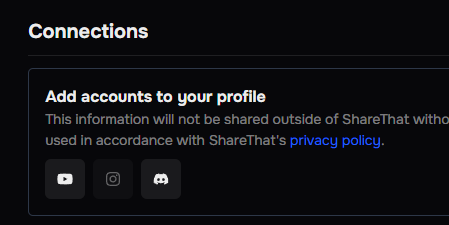 Give ShareThat access to connect to your Discord account. After you complete this step, you will be redirected back to the connections page.
You must connect your Discord to ShareThat before submitting clips via the ShareThat Discord bot.
## Discord Integration
Now that you have connected your Discord account to ShareThat, you are ready to use the commands available!
You can only run commands in groups that have added the ShareThat Discord bot to their server and are connected.
#### Commands
Run this command to submit TikTok, YouTube, and Instagram clips. When you run this command, you will be asked to specify which cycle you want to submit the clip to.
Give ShareThat access to connect to your Discord account. After you complete this step, you will be redirected back to the connections page.
You must connect your Discord to ShareThat before submitting clips via the ShareThat Discord bot.
## Discord Integration
Now that you have connected your Discord account to ShareThat, you are ready to use the commands available!
You can only run commands in groups that have added the ShareThat Discord bot to their server and are connected.
#### Commands
Run this command to submit TikTok, YouTube, and Instagram clips. When you run this command, you will be asked to specify which cycle you want to submit the clip to.